Linux服务器

推荐列表 站点导航

当前位置:首页 > 服务器技术 > Linux服务器 >

在CentOS系统上安装GitLab并自定义域名访问GitLab管理页面

来源:网络整理  作者:wy  发布时间:2020-12-23 09:11
目前就职的公司一直使用SVN作为版本管理,现在打算尝试从SVN迁移到Git。安排我来预言并搭建好相关的环境以及自己...
目前就职的公司一直使用SVN作为版本管理,现在打算尝试从SVN迁移到Git。安排我来预言并搭建好相关的环境以及自己尝试使用git。今天我就尝试在CentOS系统上安装GitLab,现在在此记录一下整个安装过程。


第一步、查看GitLab的官方网站

GitLab的官方网站关于安装gitlab的介绍页面如下:

https://about.gitlab.com/installation/

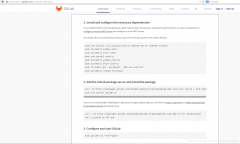
选择 CentOS,切换到如下的页面

在CentOS系统上安装GitLab并自定义域名访问GitLab管理页面

按照如上图的步骤,一步一步的来即可安装成功。


第二步、安装GitLab

1.安装和配置必要的依赖

如果你安装postfix发送邮件,请选择“网站设置”中。而不是使用后缀也可以使用sendmail配置自定义SMTP服务器配置为SMTP服务器。

在CentOS的,下面的命令将在系统防火墙打开HTTP和SSH访问。

之前没有参考官方文档,去百度搜索其他人的安装gitlab教程后,在CentOS本机上可以正常访问gitlab的管理页面,但是其他的电脑不一定都能访问gitlab的管理页面。所以这边一定要先配置好以下命令。

sudo yum install curl policycoreutils openssh-server openssh-clients

sudo systemctl enable sshd

sudo systemctl start sshd

sudo yum install postfix

sudo systemctl enable postfix

sudo systemctl start postfix

sudo firewall-cmd --permanent --add-service=http

sudo systemctl reload firewalld

在CentOS系统上安装GitLab并自定义域名访问GitLab管理页面

2.添加GitLab包服务器安装包

2.1.Gitlab官方下载安装

curl -sS https://packages.gitlab.com/install/repositories/gitlab/gitlab-ce/script.rpm.sh | sudo bash

sudo yum install gitlab-ce

如果您不喜欢这种安装方式,你可以通过管道脚本来安装库,您可以在这里找到整个脚本,网站地址:https://packages.gitlab.com/gitlab/gitlab-ee/install

在CentOS系统上安装GitLab并自定义域名访问GitLab管理页面

并选择和下载相应的安装包 网站地址:https://packages.gitlab.com/gitlab/gitlab-ee

在CentOS系统上安装GitLab并自定义域名访问GitLab管理页面

然后使用下面的命令手动安装和使用

curl -LJO https://packages.gitlab.com/gitlab/gitlab-ce/packages/el/7/gitlab-ce-XXX.rpm/download

rpm -i gitlab-ce-XXX.rpm

2.2.Gitlab国内镜像下载安装

参考地址:

https://mirror.tuna.tsinghua.edu.cn/help/gitlab-ce/

在CentOS系统上安装GitLab并自定义域名访问GitLab管理页面

有时候访问国外网站的速度很慢,受不了的话,可以使用清华大学的国内镜像,如上图所示,可以有Ubuntu、CentOS等系统的不同添加国内镜像的方式。

2.2.1.Debian/Ubuntu 用户

1、首先信任 GitLab 的 GPG 公钥:

curl https://packages.gitlab.com/gpg.key 2> /dev/null | sudo apt-key add - &>/dev/null

2、再选择你的 Debian/Ubuntu 版本,文本框中内容写进 /etc/apt/sources.list.d/gitlab-ce.list

比如我选择系统版本为Ubuntu 14.04,则生成的文本如下

deb https://mirrors.tuna.tsinghua.edu.cn/gitlab-ce/ubuntu trusty main

然后使用vi命令操作/etc/apt/sources.list.d/gitlab-ce.list文件,将上面的文本添加到/etc/apt/sources.list.d/gitlab-ce.list文件中。

3、安装 gitlab-ce:

sudo apt-get update

sudo apt-get install gitlab-ce

实战截图:

使用原始的gitlab镜像,下载失败

在CentOS系统上安装GitLab并自定义域名访问GitLab管理页面

使用国内清华大学镜像,下载成功,只需要17分钟

在CentOS系统上安装GitLab并自定义域名访问GitLab管理页面

下载完毕,安装成功截图

在CentOS系统上安装GitLab并自定义域名访问GitLab管理页面

2.2.2.RHEL/CentOS 用户

新建 /etc/yum.repos.d/gitlab-ce.repo,内容为

[gitlab-ce]

name=Gitlab CE Repository

baseurl=https://mirrors.tuna.tsinghua.edu.cn/gitlab-ce/yum/el$releasever/

gpgcheck=0

enabled=1

再执行下面命令即可。

sudo yum makecache

sudo yum install gitlab-ce


3.配置GitLab主机名

这一步在官方的文档里面没有,但是如果没有配置的话,直接启动GitLab,会出现不正确的FQDN错误,导致无法正常启动。因此必须做配置。

1.修改/etc/gitlab/gitlab.rb文件

执行如下命令,使用gedit打开/etc/gitlab/gitlab.rb文件

sudo mkdir -p /etc/gitlab

sudo touch /etc/gitlab/gitlab.rb

sudo chmod 600 /etc/gitlab/gitlab.rb

sudo gedit /etc/gitlab/gitlab.rb

找到如下这段代码,把external_url改成部署机器的域名或者IP地址,如我的电脑ip地址就是 172.28.255.100

## GitLab URL

##! URL on which GitLab will be reachable.

##! For more details on configuring external_url see:

##! https://docs.gitlab.com/omnibus/settings/configuration.html#configuring-the-external-url-for-gitlab

external_url ''

## Legend

##! The following notations at the beginning of each line may be used to

##! differentiate between components of this file and to easily select them using

##! a regex.

##! ## Titles, subtitles etc

##! ##! More information - Description, Docs, Links, Issues etc.

##! Configuration settings have a single # followed by a single space at the

##! beginning; Remove them to enable the setting.

##! IT之家IT之家Configuration settings below are optional.IT之家IT之家

##! IT之家IT之家The values currently assigned are only examples and ARE NOT the default

##!   values.IT之家IT之家

在CentOS系统上安装GitLab并自定义域名访问GitLab管理页面

2.修改/var/opt/gitlab/gitlab-rails/etc/gitlab.yml文件

执行如下命令,使用gedit打开/var/opt/gitlab/gitlab-rails/etc/gitlab.yml文件

sudo gedit /var/opt/gitlab/gitlab-rails/etc/gitlab.yml

找到关键字 IT之家 ## Web server settings IT之家

将host的值改成本机的ip地址: 172.28.255.100 ,如下图:

在CentOS系统上安装GitLab并自定义域名访问GitLab管理页面

# This file is managed by gitlab-ctl. Manual changes will be

# erased! To change the contents below, edit /etc/gitlab/gitlab.rb

# and run `sudo gitlab-ctl reconfigure`.

production: &base

#

# 1. GitLab app settings

# ==========================

## GitLab settings

gitlab:

## Web server settings (note: host is the FQDN, do not include )

host: 172.28.255.100

port: 80

https: false

# Uncommment this line below if your ssh host is different from HTTP/HTTPS one

# (you'd obviously need to replace ssh.host_example.com with your own host).

# Otherwise, ssh host will be set to the `host:` value above

ssh_host: 

# WARNING: See config/application.rb under "Relative url support" for the list of

# other files that need to be changed for relative url support

relative_url_root: 

# Trusted Proxies

# Customize if you have GitLab behind a reverse proxy which is running on a different machine.

# Add the IP address for your reverse proxy to the list, otherwise users will appear signed in from that address.

trusted_proxies:

# Uncomment and customize if you can't use the default user to run GitLab (default: 'git')

user: git

## Date & Time settings

time_zone: 

## Email settings

# Uncomment and set to false if you need to disable email sending from GitLab (default: true)

email_enabled: 

# Email address used in the "From" field in mails sent by GitLab

email_from: [email protected]

email_display_name: 

email_reply_to: 

email_subject_suffix: 

到此为止,gitlab的web管理页面就可以正常访问,并通过自定义域名访问了。

如果还是不能正常访问的话,查看80端口是否被占用?

有时候80端口可能被apache给暂用了,针对此问题,直接停用apache服务,或者修改apache的默认端口。


断口被占用

在后来我进行gitlab迁移的时候,需要在新的Ubuntu服务器上搭建Gitlab的时候,端口80以及端口8080分别被Ubuntu服务器上的Apache服务和Tomcat服务所占用。

我的做法是修改 /etc/gitlab/gitlab.rb 文件

vim /etc/gitlab/gitlab.rb 

将external_url 直接输入 ip加上端口号 ,比如因为80端口被占用,我直接输入9999端口

external_url ':9999

在CentOS系统上安装GitLab并自定义域名访问GitLab管理页面

修改NGINX监听的端口为9999

#edited by ouyang 2017-8-10 16:15:05

nginx['listen_addresses'] = ['IT之家']

nginx['listen_port'] = 9999

在CentOS系统上安装GitLab并自定义域名访问GitLab管理页面

8080端口被Tomcat占用,会出现502的页面。

在CentOS系统上安装GitLab并自定义域名访问GitLab管理页面

因此需要修改unicorn的配置,如下:

### Advanced settings

# unicorn['listen'] = '127.0.0.1'

# unicorn['port'] = 8080

# 本机有Tomcat占用了8080,因此改为8082试一试

unicorn['listen'] = '127.0.0.1'

unicorn['port'] = 8082

在CentOS系统上安装GitLab并自定义域名访问GitLab管理页面


修改Gitlab数据存储路径

默认的Gitlab数据存储路径,在目录/var/opt/gitlab/git-data下,但是新的Ubuntu服务器根目录分配的空间比较小,为了防止以后数据过大,所以可以修改路径存储为/data/gitlabData, /data是挂载的2T的硬盘够用。

### For setting up different data storing directory

###! Docs: https://docs.gitlab.com/omnibus/settings/configuration.html#storing-git-data-in-an-alternative-directory

###! IT之家IT之家If you want to use a single non-default directory to store git data use a

###!   path that doesn't contain symlinks.IT之家IT之家

# git_data_dirs({ "default" => { "path" => "/var/opt/gitlab/git-data", 'gitaly_address' => 'unix:/var/opt/gitlab/gitaly/gitaly.socket' } })

#edited by ouyangpeng 2017-8-10  配置gitlab的数据存储位置为/data目录下,保证硬盘安全

git_data_dirs({ "default" => { "path" => "/data/gitlabData" } })

在CentOS系统上安装GitLab并自定义域名访问GitLab管理页面

设置完后,过一段使用时间,可以看到该目录下的resposities,如下所示:

在CentOS系统上安装GitLab并自定义域名访问GitLab管理页面


4.配置并启动GitLab

执行如下命令

sudo gitlab-ctl reconfigure

有时候,像上面步骤修改了GitLab的ip地址一样,临时修改了GitLab的配置之后,得执行如下的命令,应用重新配好的配置并重启GitLab,然后查看GitLab的状态

sudo gitlab-ctl reconfigure

sudo gitlab-ctl restart

sudo gitlab-ctl status

如下所示,就是运行命令的截图。

在CentOS系统上安装GitLab并自定义域名访问GitLab管理页面

在CentOS系统上安装GitLab并自定义域名访问GitLab管理页面

[root@xtgl207940 test]# sudo gitlab-ctl restart

ok: run: gitaly: (pid 27639) 1s

ok: run: gitlab-monitor: (pid 27646) 0s

ok: run: gitlab-workhorse: (pid 27649) 0s

ok: run: logrotate: (pid 27660) 1s

ok: run: nginx: (pid 27667) 0s

ok: run: node-exporter: (pid 27684) 1s

ok: run: postgres-exporter: (pid 27691) 0s

ok: run: postgresql: (pid 27700) 1s

ok: run: prometheus: (pid 27710) 0s

ok: run: redis: (pid 27720) 0s

ok: run: redis-exporter: (pid 27724) 1s

ok: run: sidekiq: (pid 27730) 1s

ok: run: unicorn: (pid 27736) 0s

[root@xtgl207940 test]#  sudo gitlab-ctl status

run: gitaly: (pid 27639) 14s; run: log: (pid 26617) 438613s

run: gitlab-monitor: (pid 27646) 13s; run: log: (pid 27069) 438589s

run: gitlab-workhorse: (pid 27649) 13s; run: log: (pid 26666) 438612s

run: logrotate: (pid 27660) 13s; run: log: (pid 26819) 438605s

run: nginx: (pid 27667) 12s; run: log: (pid 26779) 438606s

run: node-exporter: (pid 27684) 12s; run: log: (pid 26932) 438598s

run: postgres-exporter: (pid 27691) 11s; run: log: (pid 27027) 438590s

run: postgresql: (pid 27700) 11s; run: log: (pid 26269) 438678s

run: prometheus: (pid 27710) 10s; run: log: (pid 26890) 438599s

run: redis: (pid 27720) 10s; run: log: (pid 26127) 438684s

run: redis-exporter: (pid 27724) 10s; run: log: (pid 26969) 438596s

run: sidekiq: (pid 27730) 9s; run: log: (pid 26567) 438619s

run: unicorn: (pid 27750) 7s; run: log: (pid 26512) 438621s

[root@xtgl207940 test]# 


5.打开浏览器,输入本机的ip地址并登陆

在您的第一次访问时,您将被重定向到密码重置屏幕,以提供初始管理员帐户的密码。输入您想要的密码,您将被重定向回登录屏幕。

默认帐户的用户名是root。提供您先前创建的密码并登录。登录后,您可以更改用户名。

我这边因为以及不是第一次访问了,所以进入的是如下的页面:

在CentOS系统上安装GitLab并自定义域名访问GitLab管理页面

输入帐号名和密码,如果没有请先注册。

在CentOS系统上安装GitLab并自定义域名访问GitLab管理页面

这个是新注册的帐号登陆之后的页面

在CentOS系统上安装GitLab并自定义域名访问GitLab管理页面

然后你可以在该管理网站上进行相应的操作,如下图所示:

在CentOS系统上安装GitLab并自定义域名访问GitLab管理页面


常用的几个Gitlab命令

# 重新应用gitlab的配置

sudo gitlab-ctl reconfigure

# 重启gitlab服务

sudo gitlab-ctl restart

# 查看gitlab运行状态

sudo gitlab-ctl status

#停止gitlab服务

sudo gitlab-ctl stop

# 查看gitlab运行日志

sudo gitlab-ctl tail

相关热词: 安装

本站内容来源于网络,如有侵权请与我们联系,我们会及时删除,我们深感抱歉!
注:本站所有信息仅供用于网络技术学习参考,学习中请遵循相关法律法规!

本文地址: https://v30.fanwenzhu.com/server/fwq/8018.shtml

相关文章
Copyright © www.juheyunku.com      关于 | 合作 | 声明 | 联系 | 更新 | 地图 | Tags

在CentOS系统上安装GitLab并自定义域名访问GitLab管理页面

2020-12-23 编辑:wy

目前就职的公司一直使用SVN作为版本管理,现在打算尝试从SVN迁移到Git。安排我来预言并搭建好相关的环境以及自己尝试使用git。今天我就尝试在CentOS系统上安装GitLab,现在在此记录一下整个安装过程。


第一步、查看GitLab的官方网站

GitLab的官方网站关于安装gitlab的介绍页面如下:

https://about.gitlab.com/installation/

选择 CentOS,切换到如下的页面

在CentOS系统上安装GitLab并自定义域名访问GitLab管理页面

按照如上图的步骤,一步一步的来即可安装成功。


第二步、安装GitLab

1.安装和配置必要的依赖

如果你安装postfix发送邮件,请选择“网站设置”中。而不是使用后缀也可以使用sendmail配置自定义SMTP服务器配置为SMTP服务器。

在CentOS的,下面的命令将在系统防火墙打开HTTP和SSH访问。

之前没有参考官方文档,去百度搜索其他人的安装gitlab教程后,在CentOS本机上可以正常访问gitlab的管理页面,但是其他的电脑不一定都能访问gitlab的管理页面。所以这边一定要先配置好以下命令。

sudo yum install curl policycoreutils openssh-server openssh-clients

sudo systemctl enable sshd

sudo systemctl start sshd

sudo yum install postfix

sudo systemctl enable postfix

sudo systemctl start postfix

sudo firewall-cmd --permanent --add-service=http

sudo systemctl reload firewalld

在CentOS系统上安装GitLab并自定义域名访问GitLab管理页面

2.添加GitLab包服务器安装包

2.1.Gitlab官方下载安装

curl -sS https://packages.gitlab.com/install/repositories/gitlab/gitlab-ce/script.rpm.sh | sudo bash

sudo yum install gitlab-ce

如果您不喜欢这种安装方式,你可以通过管道脚本来安装库,您可以在这里找到整个脚本,网站地址:https://packages.gitlab.com/gitlab/gitlab-ee/install

在CentOS系统上安装GitLab并自定义域名访问GitLab管理页面

并选择和下载相应的安装包 网站地址:https://packages.gitlab.com/gitlab/gitlab-ee

在CentOS系统上安装GitLab并自定义域名访问GitLab管理页面

然后使用下面的命令手动安装和使用

curl -LJO https://packages.gitlab.com/gitlab/gitlab-ce/packages/el/7/gitlab-ce-XXX.rpm/download

rpm -i gitlab-ce-XXX.rpm

2.2.Gitlab国内镜像下载安装

参考地址:

https://mirror.tuna.tsinghua.edu.cn/help/gitlab-ce/

在CentOS系统上安装GitLab并自定义域名访问GitLab管理页面

有时候访问国外网站的速度很慢,受不了的话,可以使用清华大学的国内镜像,如上图所示,可以有Ubuntu、CentOS等系统的不同添加国内镜像的方式。

2.2.1.Debian/Ubuntu 用户

1、首先信任 GitLab 的 GPG 公钥:

curl https://packages.gitlab.com/gpg.key 2> /dev/null | sudo apt-key add - &>/dev/null

2、再选择你的 Debian/Ubuntu 版本,文本框中内容写进 /etc/apt/sources.list.d/gitlab-ce.list

比如我选择系统版本为Ubuntu 14.04,则生成的文本如下

deb https://mirrors.tuna.tsinghua.edu.cn/gitlab-ce/ubuntu trusty main

然后使用vi命令操作/etc/apt/sources.list.d/gitlab-ce.list文件,将上面的文本添加到/etc/apt/sources.list.d/gitlab-ce.list文件中。

3、安装 gitlab-ce:

sudo apt-get update

sudo apt-get install gitlab-ce

实战截图:

使用原始的gitlab镜像,下载失败

在CentOS系统上安装GitLab并自定义域名访问GitLab管理页面

使用国内清华大学镜像,下载成功,只需要17分钟

在CentOS系统上安装GitLab并自定义域名访问GitLab管理页面

下载完毕,安装成功截图

在CentOS系统上安装GitLab并自定义域名访问GitLab管理页面

2.2.2.RHEL/CentOS 用户

新建 /etc/yum.repos.d/gitlab-ce.repo,内容为

[gitlab-ce]

name=Gitlab CE Repository

baseurl=https://mirrors.tuna.tsinghua.edu.cn/gitlab-ce/yum/el$releasever/

gpgcheck=0

enabled=1

再执行下面命令即可。

sudo yum makecache

sudo yum install gitlab-ce


3.配置GitLab主机名

这一步在官方的文档里面没有,但是如果没有配置的话,直接启动GitLab,会出现不正确的FQDN错误,导致无法正常启动。因此必须做配置。

1.修改/etc/gitlab/gitlab.rb文件

执行如下命令,使用gedit打开/etc/gitlab/gitlab.rb文件

sudo mkdir -p /etc/gitlab

sudo touch /etc/gitlab/gitlab.rb

sudo chmod 600 /etc/gitlab/gitlab.rb

sudo gedit /etc/gitlab/gitlab.rb

找到如下这段代码,把external_url改成部署机器的域名或者IP地址,如我的电脑ip地址就是 172.28.255.100

## GitLab URL

##! URL on which GitLab will be reachable.

##! For more details on configuring external_url see:

##! https://docs.gitlab.com/omnibus/settings/configuration.html#configuring-the-external-url-for-gitlab

external_url ''

## Legend

##! The following notations at the beginning of each line may be used to

##! differentiate between components of this file and to easily select them using

##! a regex.

##! ## Titles, subtitles etc

##! ##! More information - Description, Docs, Links, Issues etc.

##! Configuration settings have a single # followed by a single space at the

##! beginning; Remove them to enable the setting.

##! IT之家IT之家Configuration settings below are optional.IT之家IT之家

##! IT之家IT之家The values currently assigned are only examples and ARE NOT the default

##!   values.IT之家IT之家

在CentOS系统上安装GitLab并自定义域名访问GitLab管理页面

2.修改/var/opt/gitlab/gitlab-rails/etc/gitlab.yml文件

执行如下命令,使用gedit打开/var/opt/gitlab/gitlab-rails/etc/gitlab.yml文件

sudo gedit /var/opt/gitlab/gitlab-rails/etc/gitlab.yml

找到关键字 IT之家 ## Web server settings IT之家

将host的值改成本机的ip地址: 172.28.255.100 ,如下图:

在CentOS系统上安装GitLab并自定义域名访问GitLab管理页面

# This file is managed by gitlab-ctl. Manual changes will be

# erased! To change the contents below, edit /etc/gitlab/gitlab.rb

# and run `sudo gitlab-ctl reconfigure`.

production: &base

#

# 1. GitLab app settings

# ==========================

## GitLab settings

gitlab:

## Web server settings (note: host is the FQDN, do not include )

host: 172.28.255.100

port: 80

https: false

# Uncommment this line below if your ssh host is different from HTTP/HTTPS one

# (you'd obviously need to replace ssh.host_example.com with your own host).

# Otherwise, ssh host will be set to the `host:` value above

ssh_host: 

# WARNING: See config/application.rb under "Relative url support" for the list of

# other files that need to be changed for relative url support

relative_url_root: 

# Trusted Proxies

# Customize if you have GitLab behind a reverse proxy which is running on a different machine.

# Add the IP address for your reverse proxy to the list, otherwise users will appear signed in from that address.

trusted_proxies:

# Uncomment and customize if you can't use the default user to run GitLab (default: 'git')

user: git

## Date & Time settings

time_zone: 

## Email settings

# Uncomment and set to false if you need to disable email sending from GitLab (default: true)

email_enabled: 

# Email address used in the "From" field in mails sent by GitLab

email_from: [email protected]

email_display_name: 

email_reply_to: 

email_subject_suffix: 

到此为止,gitlab的web管理页面就可以正常访问,并通过自定义域名访问了。

如果还是不能正常访问的话,查看80端口是否被占用?

有时候80端口可能被apache给暂用了,针对此问题,直接停用apache服务,或者修改apache的默认端口。


断口被占用

在后来我进行gitlab迁移的时候,需要在新的Ubuntu服务器上搭建Gitlab的时候,端口80以及端口8080分别被Ubuntu服务器上的Apache服务和Tomcat服务所占用。

我的做法是修改 /etc/gitlab/gitlab.rb 文件

vim /etc/gitlab/gitlab.rb 

将external_url 直接输入 ip加上端口号 ,比如因为80端口被占用,我直接输入9999端口

external_url ':9999

在CentOS系统上安装GitLab并自定义域名访问GitLab管理页面

修改NGINX监听的端口为9999

#edited by ouyang 2017-8-10 16:15:05

nginx['listen_addresses'] = ['IT之家']

nginx['listen_port'] = 9999

在CentOS系统上安装GitLab并自定义域名访问GitLab管理页面

8080端口被Tomcat占用,会出现502的页面。

在CentOS系统上安装GitLab并自定义域名访问GitLab管理页面

因此需要修改unicorn的配置,如下:

### Advanced settings

# unicorn['listen'] = '127.0.0.1'

# unicorn['port'] = 8080

# 本机有Tomcat占用了8080,因此改为8082试一试

unicorn['listen'] = '127.0.0.1'

unicorn['port'] = 8082

在CentOS系统上安装GitLab并自定义域名访问GitLab管理页面


修改Gitlab数据存储路径

默认的Gitlab数据存储路径,在目录/var/opt/gitlab/git-data下,但是新的Ubuntu服务器根目录分配的空间比较小,为了防止以后数据过大,所以可以修改路径存储为/data/gitlabData, /data是挂载的2T的硬盘够用。

### For setting up different data storing directory

###! Docs: https://docs.gitlab.com/omnibus/settings/configuration.html#storing-git-data-in-an-alternative-directory

###! IT之家IT之家If you want to use a single non-default directory to store git data use a

###!   path that doesn't contain symlinks.IT之家IT之家

# git_data_dirs({ "default" => { "path" => "/var/opt/gitlab/git-data", 'gitaly_address' => 'unix:/var/opt/gitlab/gitaly/gitaly.socket' } })

#edited by ouyangpeng 2017-8-10  配置gitlab的数据存储位置为/data目录下,保证硬盘安全

git_data_dirs({ "default" => { "path" => "/data/gitlabData" } })

在CentOS系统上安装GitLab并自定义域名访问GitLab管理页面

设置完后,过一段使用时间,可以看到该目录下的resposities,如下所示:

在CentOS系统上安装GitLab并自定义域名访问GitLab管理页面


4.配置并启动GitLab

执行如下命令

sudo gitlab-ctl reconfigure

有时候,像上面步骤修改了GitLab的ip地址一样,临时修改了GitLab的配置之后,得执行如下的命令,应用重新配好的配置并重启GitLab,然后查看GitLab的状态

sudo gitlab-ctl reconfigure

sudo gitlab-ctl restart

sudo gitlab-ctl status

如下所示,就是运行命令的截图。

在CentOS系统上安装GitLab并自定义域名访问GitLab管理页面

在CentOS系统上安装GitLab并自定义域名访问GitLab管理页面

[root@xtgl207940 test]# sudo gitlab-ctl restart

ok: run: gitaly: (pid 27639) 1s

ok: run: gitlab-monitor: (pid 27646) 0s

ok: run: gitlab-workhorse: (pid 27649) 0s

ok: run: logrotate: (pid 27660) 1s

ok: run: nginx: (pid 27667) 0s

ok: run: node-exporter: (pid 27684) 1s

ok: run: postgres-exporter: (pid 27691) 0s

ok: run: postgresql: (pid 27700) 1s

ok: run: prometheus: (pid 27710) 0s

ok: run: redis: (pid 27720) 0s

ok: run: redis-exporter: (pid 27724) 1s

ok: run: sidekiq: (pid 27730) 1s

ok: run: unicorn: (pid 27736) 0s

[root@xtgl207940 test]#  sudo gitlab-ctl status

run: gitaly: (pid 27639) 14s; run: log: (pid 26617) 438613s

run: gitlab-monitor: (pid 27646) 13s; run: log: (pid 27069) 438589s

run: gitlab-workhorse: (pid 27649) 13s; run: log: (pid 26666) 438612s

run: logrotate: (pid 27660) 13s; run: log: (pid 26819) 438605s

run: nginx: (pid 27667) 12s; run: log: (pid 26779) 438606s

run: node-exporter: (pid 27684) 12s; run: log: (pid 26932) 438598s

run: postgres-exporter: (pid 27691) 11s; run: log: (pid 27027) 438590s

run: postgresql: (pid 27700) 11s; run: log: (pid 26269) 438678s

run: prometheus: (pid 27710) 10s; run: log: (pid 26890) 438599s

run: redis: (pid 27720) 10s; run: log: (pid 26127) 438684s

run: redis-exporter: (pid 27724) 10s; run: log: (pid 26969) 438596s

run: sidekiq: (pid 27730) 9s; run: log: (pid 26567) 438619s

run: unicorn: (pid 27750) 7s; run: log: (pid 26512) 438621s

[root@xtgl207940 test]# 


5.打开浏览器,输入本机的ip地址并登陆

在您的第一次访问时,您将被重定向到密码重置屏幕,以提供初始管理员帐户的密码。输入您想要的密码,您将被重定向回登录屏幕。

默认帐户的用户名是root。提供您先前创建的密码并登录。登录后,您可以更改用户名。

我这边因为以及不是第一次访问了,所以进入的是如下的页面:

在CentOS系统上安装GitLab并自定义域名访问GitLab管理页面

输入帐号名和密码,如果没有请先注册。

在CentOS系统上安装GitLab并自定义域名访问GitLab管理页面

这个是新注册的帐号登陆之后的页面

在CentOS系统上安装GitLab并自定义域名访问GitLab管理页面

然后你可以在该管理网站上进行相应的操作,如下图所示:

在CentOS系统上安装GitLab并自定义域名访问GitLab管理页面


常用的几个Gitlab命令

# 重新应用gitlab的配置

sudo gitlab-ctl reconfigure

# 重启gitlab服务

sudo gitlab-ctl restart

# 查看gitlab运行状态

sudo gitlab-ctl status

#停止gitlab服务

sudo gitlab-ctl stop

# 查看gitlab运行日志

sudo gitlab-ctl tail

本站内容来源于网络,如有侵权请与我们联系,我们会及时删除,我们深感抱歉!
注:本站所有信息仅供学习参考!
本文地址为 https://v30.fanwenzhu.com/server/fwq/8018.shtml

相关文章

风云图片

推荐阅读

返回Linux服务器频道首页